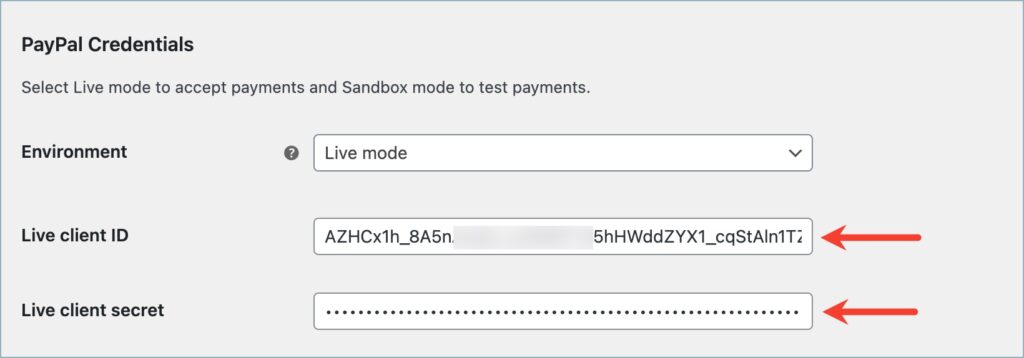
Steps to get a Client ID and Secret
If you have an existing PayPal business account, log in to the account. Otherwise, sign up and create a new business account.
- From the Activity tab, select API Access.
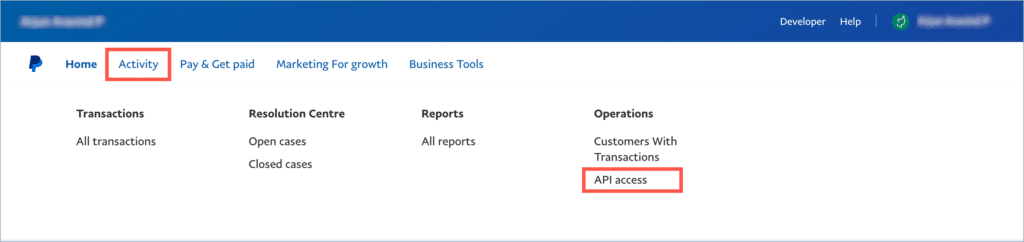
Alternatively, from the profile tab, navigate to the Account settings.

From Account settings, click on View/Update inline to the API access bar.
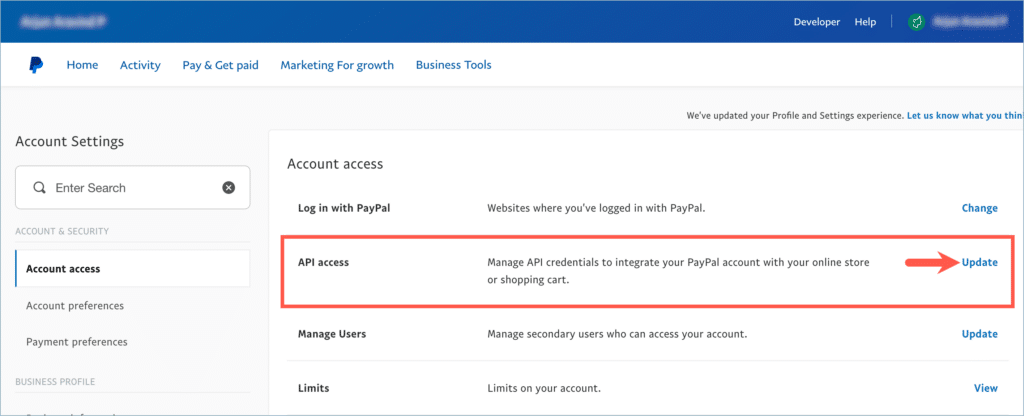

- From the API credentials page, scroll down to the REST API Integration section and click Manage API apps and credentials.
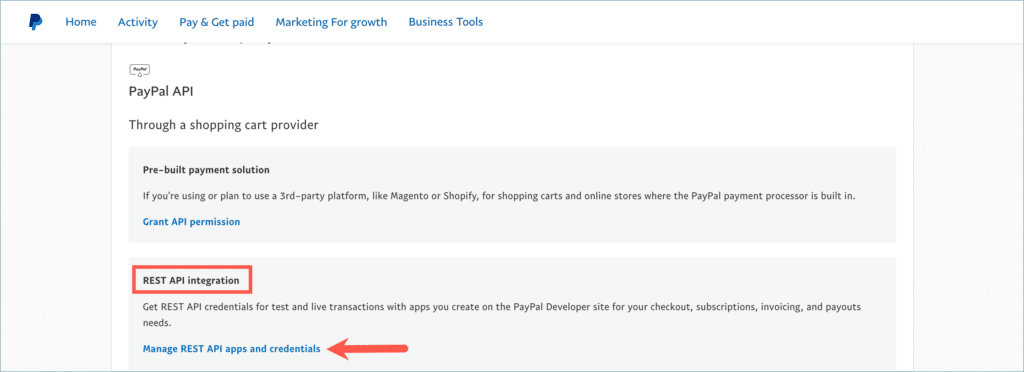
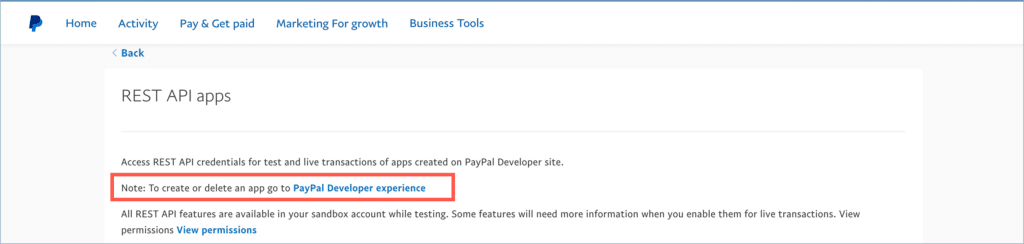
- The REST API apps window opens up. Click on the PayPal Developer experience link to create or manage apps.
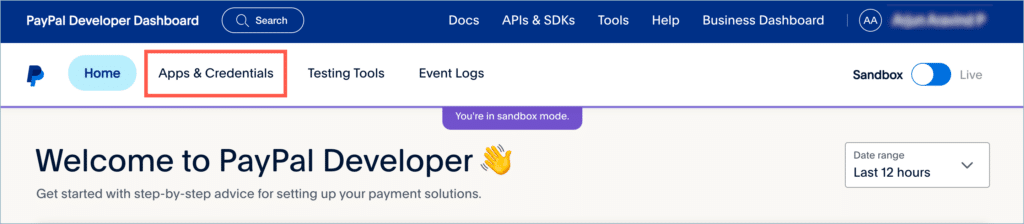
From the dashboard, click on Apps & Credentials.
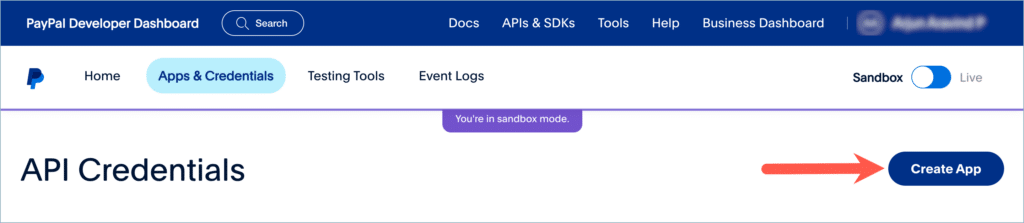
Next, click on the Create App.
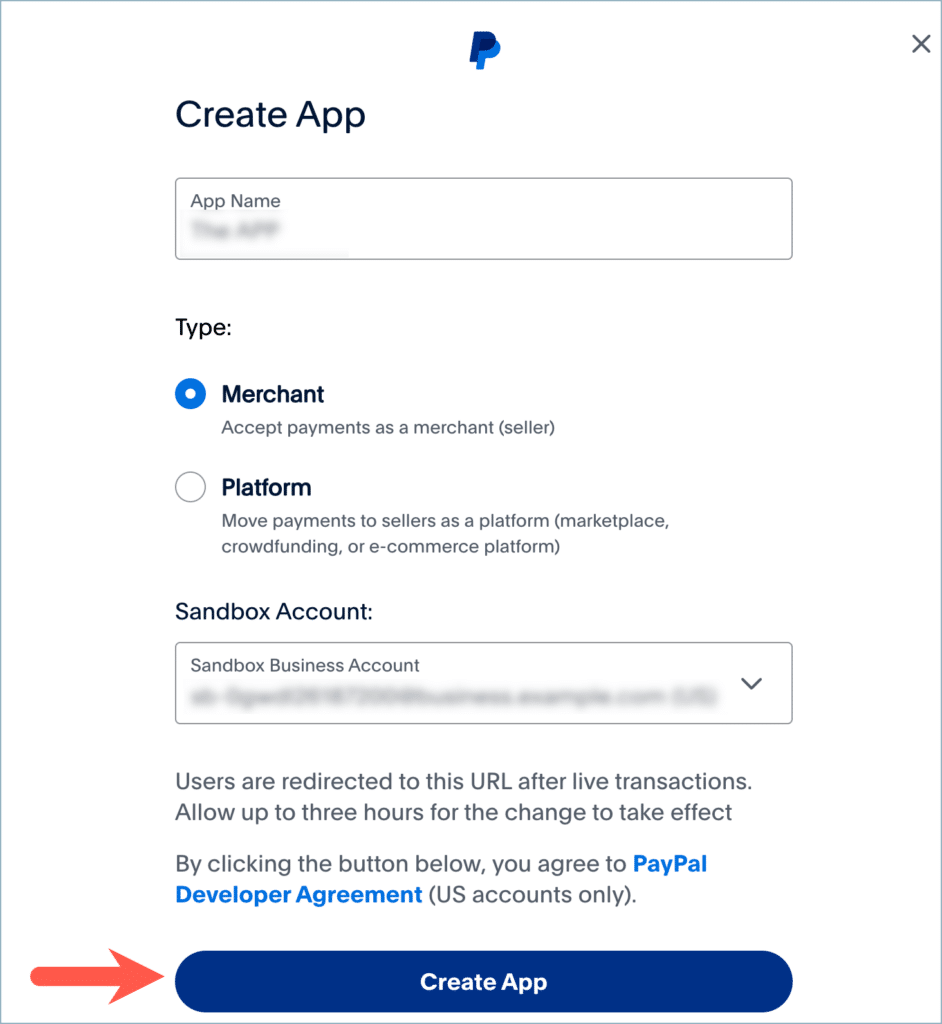
In the form that just came up, input the application details and click on Create App.
Now the Credentials are generated. Copy the Client ID and Secret.
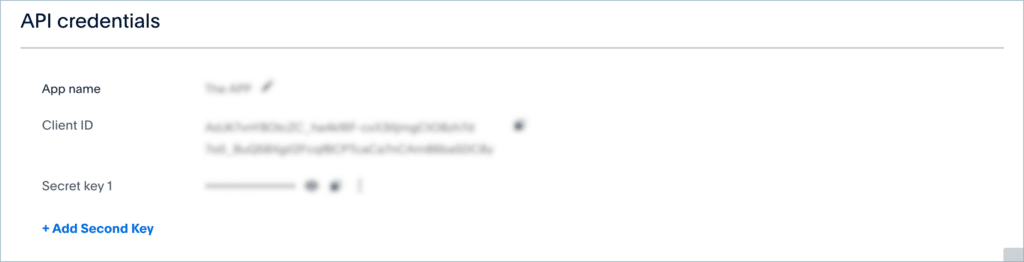
- Paste the credentials in the respective fields of the plugin.